Prospecting software for small B2B businesses
Find your focus.
Build your next customer relationship.
Choose the right prospects, prepare what to say, and keep every conversation moving—all in one place.
Explore with fictional sample records.
Live data and paid access are being evaluated.
Actual product screen · fictional sample data
Where would you like to start?
Try the thinking behind the workflow
Your first prospect.
One step at a time.
Choose a sample business, review a prospect and prepare your next conversation.
This interactive website example uses fictional records and prewritten messages. It does not run a search, use credits or save anything to the product.
In the product, start with an audience, review each prospect’s fit, prepare your message and record your next step. Enable JavaScript to try the example here, or explore the screenshots below.
Step 1 of 4 · Choose your audience
What does your sample business offer?
Pick an example. Switching businesses later resets the sample message.
A possible fit. A question still to ask.
- Industry matches:
- Location matches:
- Still unknown:
The real product shows a fit grade and required checks. Matching your audience does not prove buying intent.
A useful next step: check the missing information before making assumptions.
Make the first message sound like you.
The product prepares drafts from your saved business profile. This website shows a prewritten example you can edit.
Keep this fictional: edits stay on this page and are cleared when you restart or reload. Nothing is sent.
Prefer calling? See a sample opening.
Before real outreach, review the facts, wording and contact restrictions.
Give the conversation a next step.
Imagine they asked you to get back in touch. In the product, record the conversation and set the agreed follow-up.
You have a clear next step.
This is the routine ProspectGrade helps organize: audience, review, conversation and follow-up.
Ready to see the working product? Explore the real screens below or arrange a sample-data walkthrough with Kai.
See how the work fits together
From “who should I call?”
to a clear next step.
Open a chapter to explore real product screens and the details behind each feature.
No sign-in needed for this website tour. A personal walkthrough uses the working demonstration.
01Find and review prospectsChoose a market. Understand the fit. See what still needs checking.
A closer look at ProspectGrade
From a promising market
to a purposeful next step.
Finding a name is the beginning. The useful part is knowing why that business could fit—and keeping the conversation moving.
Explore the actual product below. These screens come from our working demonstration, with fictional companies and contacts.
01 / Start with a clear audience
Your business.
Your definition of a good fit.
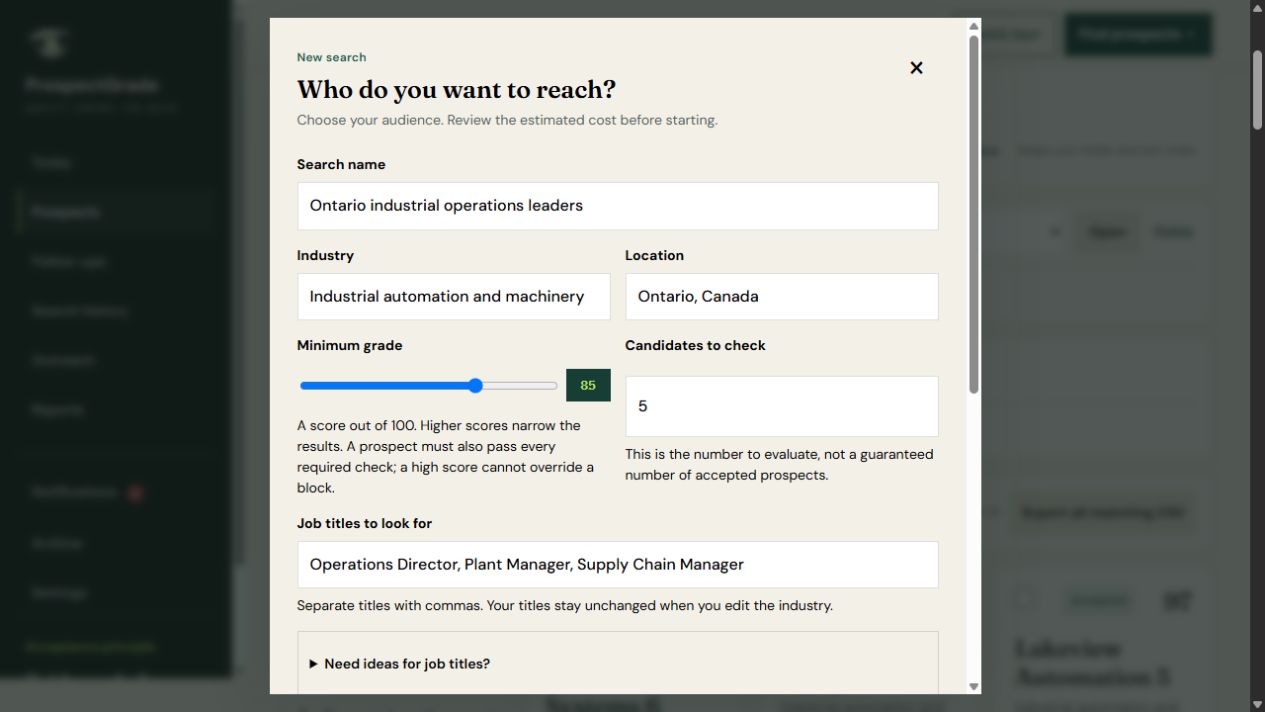
Choose the industry, location and job titles you want to reach. Set the standard candidates should meet and review the estimated search cost before starting.
- Focus on a market you can realistically serve
- Choose the roles relevant to your offer
- Review the search scope before using credits
02 / Put context beside the contact
Know more than
a name and a number.
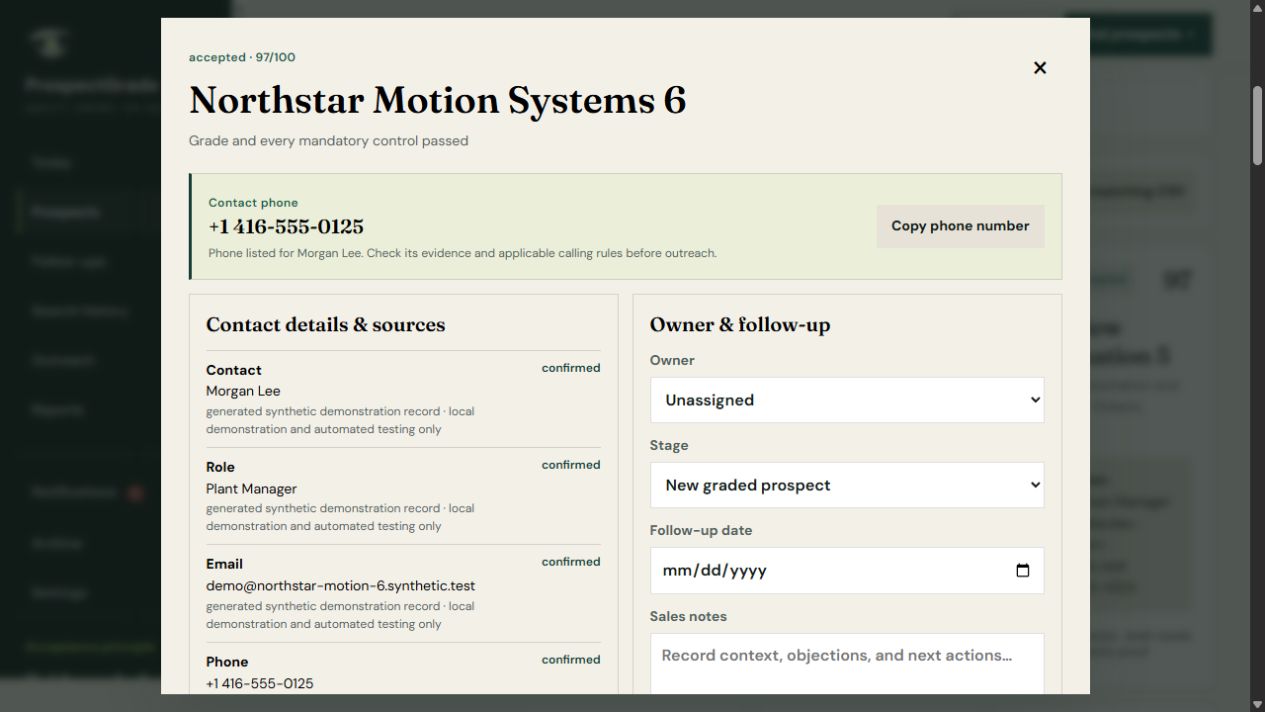
Review a prospect’s fit and the information behind it. Keep the owner, sales stage, notes and next follow-up in the same record.
- Inspect the grade and required checks
- See where contact information came from
- Keep what you learn with the prospect
A fit grade is not a promise of buying intent or contact accuracy.
03 / Make following up part of the routine
Open your workspace.
Know where to pick up.
“I’ll call next week” deserves a place you can return to.
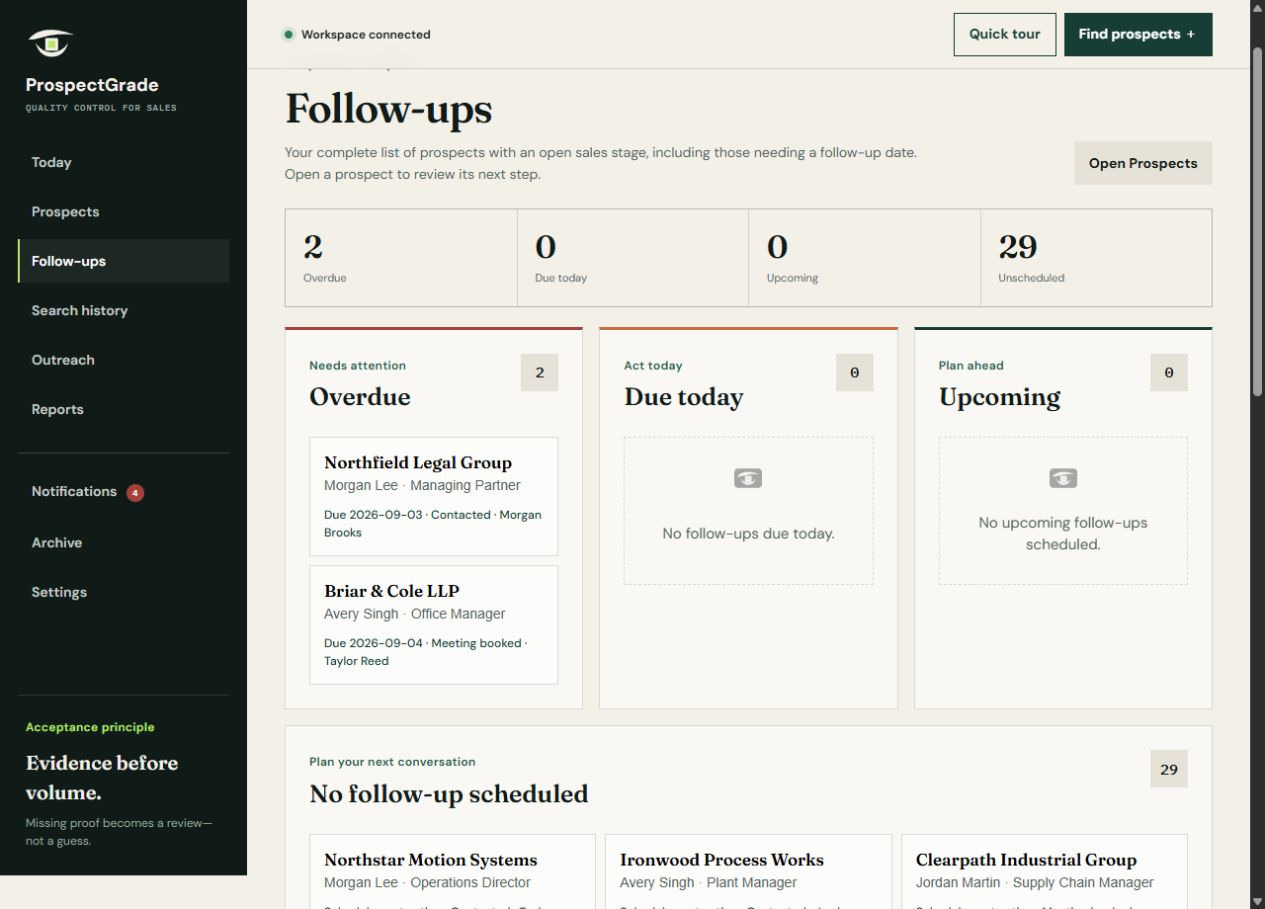
See overdue, current and upcoming follow-ups, as well as prospects that still need a date. Track requested callbacks and record when they are completed or rescheduled.
These are in-app work queues, not a promise of email or calendar reminders.
Why the grade matters
Every prospect
earns its place.
A company can match your target market without needing your service today. ProspectGrade keeps that distinction visible so you can start with better questions.
The grade helps you assess fit. Supporting information and required checks help you decide whether to move forward.
What fits
Understand which of your requirements the available information supports.
What needs checking
Missing or uncertain information remains visible. It becomes a question to resolve, not a fact to assume.
What happens next
A high score cannot override a blocking check. Review the result, apply your own knowledge and decide who belongs on your shortlist.
02Prepare calls and emailsExplore scripts, editable drafts, review steps and demonstration costs.
From a good prospect to a first conversation
Know who to approach.
Have a starting point for what to say.
Prepare a personalized call script or cold-email draft using your business profile and the prospect information available.
Your offer, the problem you solve and the next step you want to suggest give the message direction. Review the wording, check the facts and make it sound like you.
Cold-call scripts
Start with an opening, a reason for reaching out, a discovery question and a suggested next step. Copy the script and adapt it to the conversation.
Cold-email drafts
Prepare a subject line and email body shaped by your saved sales profile. Edit the draft, refine the message and review it before approval.
Your judgment stays central
Use the draft as a starting point. Confirm the details and contact restrictions before outreach. Approving a draft does not send it.
Explore script and email preparation in a sample-data walkthrough. The current demonstration uses profile-based templates; generative AI drafting and live email delivery are not enabled.
See the outreach workflow ↗The drafting workflow, step by step
Start with your business.
Review every word.
Describe your offer.
In Settings → Your business, save your business name, service, ideal customer, value proposition, outreach brief, sender name and preferred next step. Be specific about what you can actually deliver.
Choose your prospects.
Set your audience and optionally select Prepare email drafts before starting a search. Review the estimate first. For calling, request phone evidence; the call-script panel appears on records with a phone number.
Prepare for the call.
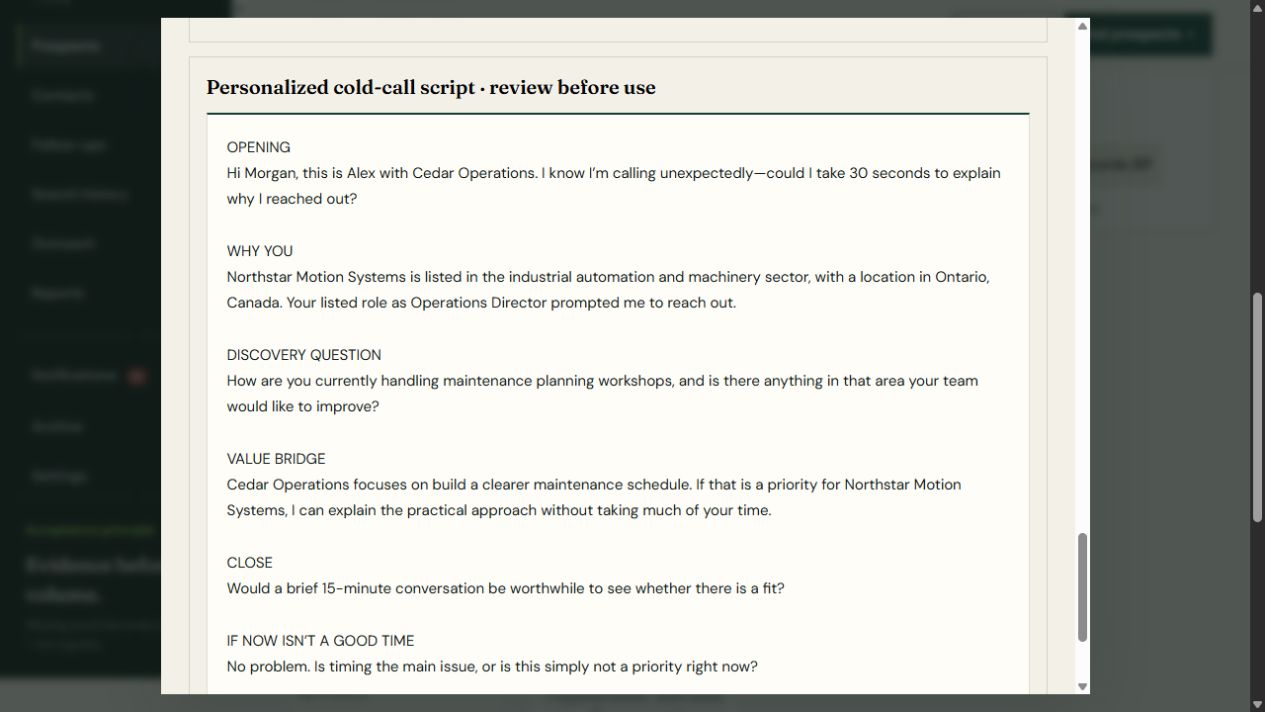
Open the prospect and find Personalized cold-call script. Review the opening, why you are reaching out, discovery question, value bridge and suggested close. Copy the script and adapt the wording to your voice. The script does not place a call.
Review the email.
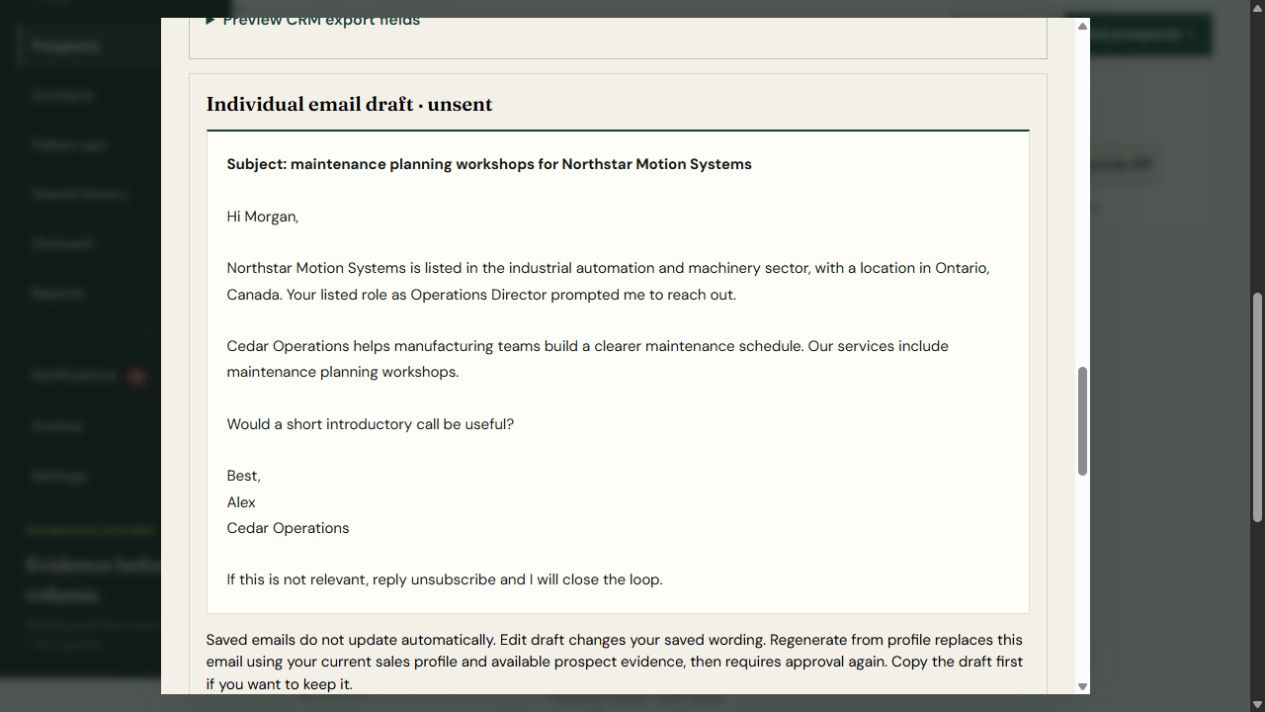
Read the subject and body, check the prospect details, then use Edit draft to make changes. Regenerate from profile replaces the saved email using your current business profile and requires review again. Copy the old version first if you want to keep it.
Keep control of the next step.
Check the facts, wording and contact restrictions before using either draft. Email approval leaves it unsent. After your conversation, record the outcome and schedule the follow-up. Current walkthroughs do not send real email.
Call preparation
A structure to work from.
The script connects your offer with the available company and role details. It is a preparation aid, not a word-for-word performance: adjust awkward phrasing and listen to the person you call.
Email preparation
A first draft you can make your own.
Start with a subject, prospect context, offer and suggested next step. Edit the message before approving it. A listed industry or job title is context—not evidence that the person wants to buy.
With drafting support or without it
Compare the work.
Understand the cost.
Without prepared scripts or emails
You write the opening, questions and email yourself, using your own notes or templates. You still research the prospect, review restrictions and record the outcome.
No draft-preparation credit is added to the demo search when Prepare email drafts is off. Search and optional phone-evidence credits still apply.
With prepared scripts and emails
You start with wording assembled from your saved profile and available prospect details. Your work shifts to checking, editing and making the message appropriate for that person.
Demo searches add 1 demonstration credit per candidate when Prepare email drafts is on. Viewing or copying a call script has no separate demo credit charge.
A concrete demonstration example
For 100 candidates, the current synthetic search estimate is 300 demo credits without email drafts or 400 with email drafts, with phone evidence off. Turning phone evidence on adds 100 credits to either estimate: 400 or 500 respectively. The candidate count is not a guarantee of accepted prospects.
Generating or regenerating an individual email after a search currently has a zero additional credit charge in the demo. Existing saved emails do not change automatically when your profile changes.
These are simulation credits, not dollars, PDL credits or a published subscription price. Live data charges, any future AI usage fees and customer plans are still to be confirmed. We have not measured a reliable time saving or sales uplift, so neither is promised.
03Manage contacts and salesBring your list. Keep conversations, follow-ups and opportunities together.
Start with the people you already know
Your next customer
may already be on your list.
A referral. An enquiry. A customer who may need you again.
Give those relationships a place alongside your prospect research. Add a contact yourself or import a CSV, review possible matches and decide what to save. You do not need a connected CRM or a new research search to begin.
Bring your list with you
Match spreadsheet columns to contact fields, review each row and check possible duplicates before saving. Existing contact details are not silently replaced.
Keep research in context
Link reviewed research to a saved contact. Read accessible research and customer conversations in one timeline, with their source and original date visible.
Keep your promises visible
Record a conversation and schedule the next follow-up. Customer and research reminders remain separate, so adding one does not replace the other.
Track the work you win
Record potential, won and lost sales against a customer, including repeat purchases, amounts, currencies, dates and notes. These are sales records you maintain, not payment collection or accounting.
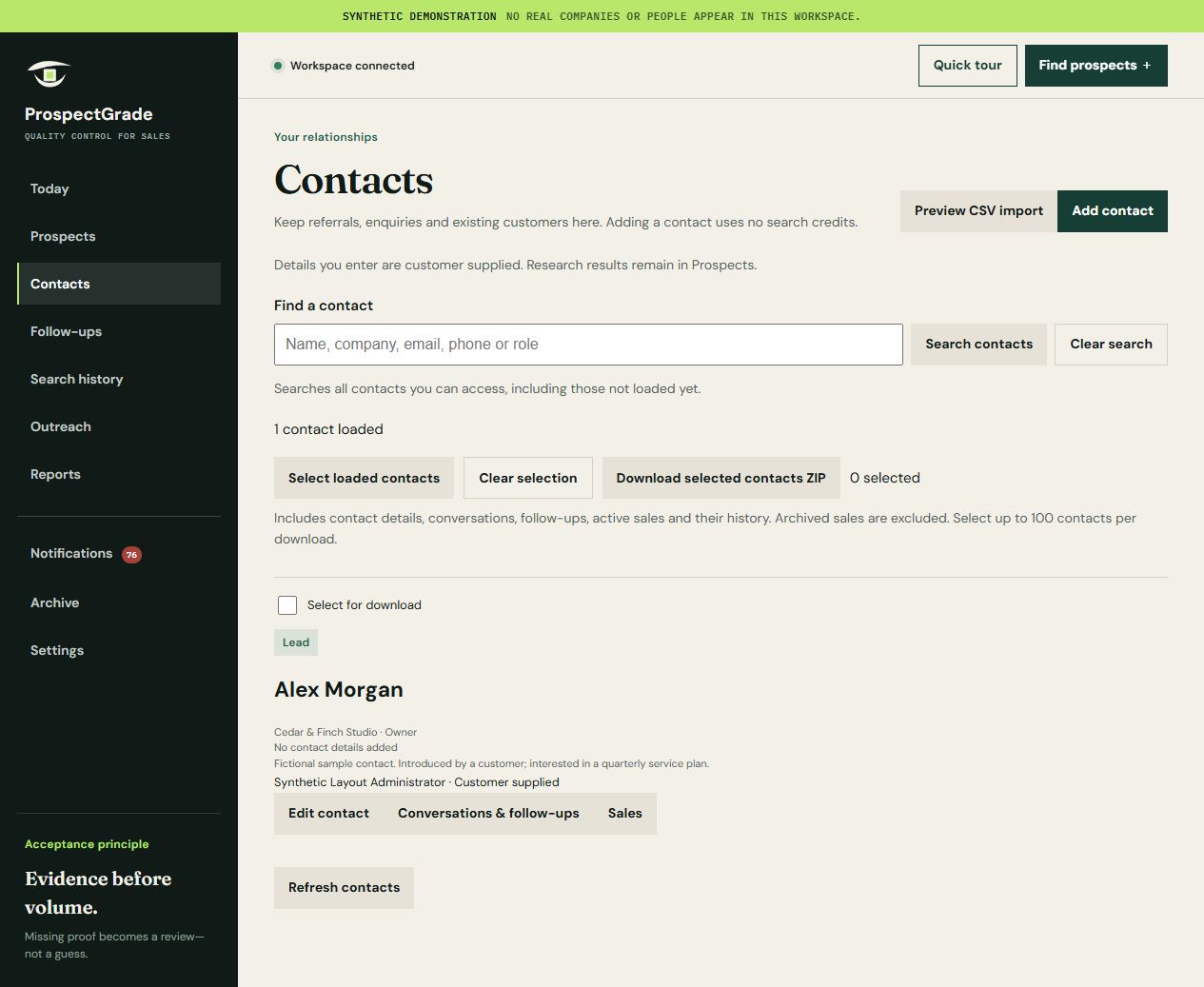
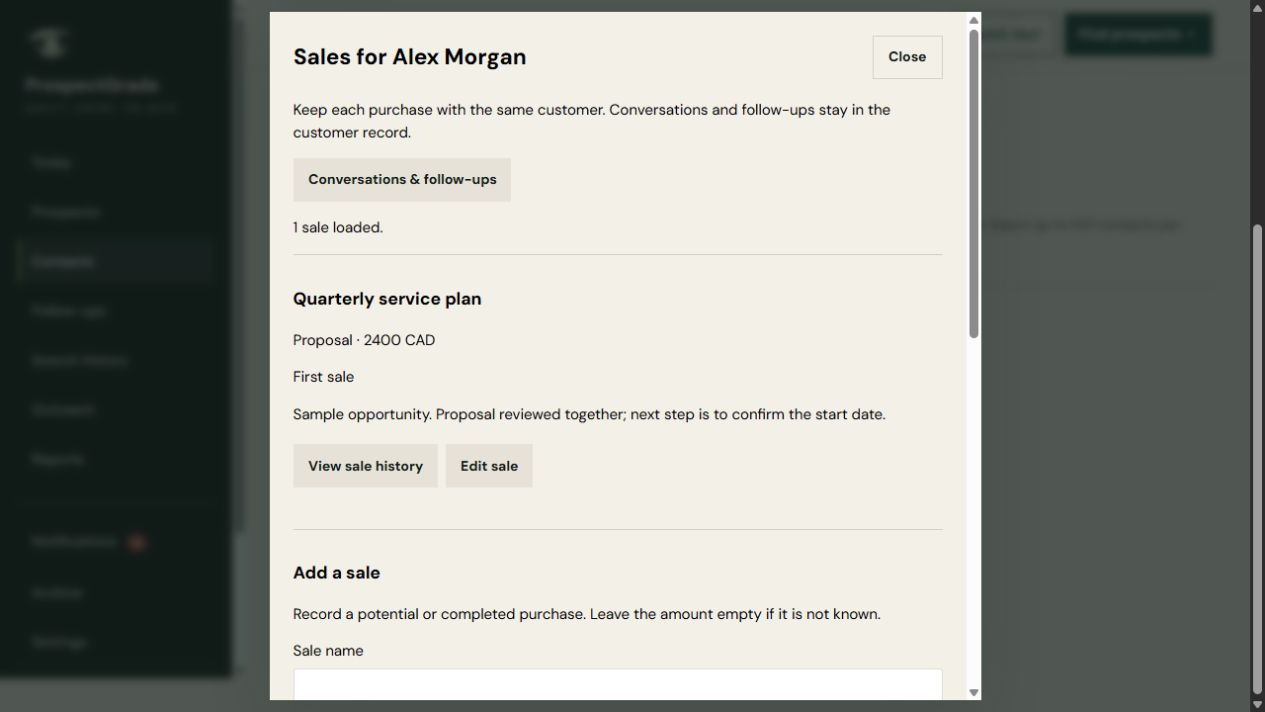
One relationship, a clearer next step.
A referral asks for a quote. Save the contact, note the conversation, record the potential sale and set a follow-up. When the work is won, update the sale and keep the history for the next conversation.
Illustrative workflow. Explore these features with fictional records in a sample-data walkthrough.
04Keep your daily work organizedReturn to saved views, notes, owners and next steps.
Built for the work between conversations
A useful place to return.
Every working day.
The prospect record stays useful after the first review. Keep your decisions and the next action close to the information that shaped them.
Find your place again
Return to search folders, filter prospects and save useful views. Pick up with the group of businesses you meant to work on.
Remember the conversation
Record calls, replies, meetings and notes. Keep objections and useful context with the prospect instead of relying on memory.
See progress clearly
Track stages such as Contacted, Meeting booked and Nurture. Review outcomes you record as you learn which approaches deserve another look.
Share responsibility
Assign an owner and give colleagues a common set of criteria. Keep review decisions and next steps available when work changes hands.
Built around the person doing the selling
A practical place to start.
Room to build a routine.
For founders, business owners and small teams selling to other businesses.
→Find your starting pointExplore the founder example and the workflows for owners and sales teams.
One person or a growing team
Start with structure.
Keep it as you grow.
The new founder
Explore a repeatable way to choose your market, assess prospects and plan your first conversations.
Build your first routine ↗The owner who sells
Return to the right notes and follow-ups between the other demands of running your business.
Explore your workflow ↗The small sales team
Share the standard for a good prospect, assign ownership and keep the next person informed.
Talk through your team’s needs ↗A clear picture before you commit
What you can explore.
What comes next.
Explore the working demonstration now. Live prospect data and paid plans will be confirmed before customer launch.
Explore with sample records
- Audience setup, grading and review
- Contact entry and reviewed CSV imports
- Linked research and conversation timelines
- Ownership, follow-ups and callback tracking
- Potential, won and lost sales, including repeat purchases
- Personalized cold-call scripts and editable cold-email drafts
- Draft review and CRM mapping previews
Pricing and live access
Customer pricing is not published yet. No paid signup is available on this website.
- Licensed live data, coverage and contact fields
- Subscription pricing, usage and data costs
- Permitted exports and supported connections
- Production access and any live sending options
Your questions, answered
Clear answers.
No guesswork.
New to prospecting software? Start here.
Ask Kai a question ↗What does ProspectGrade actually do?
It connects prospect research with the relationships that follow. Define your market, review fit, add or import contacts, and keep conversations, follow-ups and sales together. Current walkthroughs use sample data.
Is it suitable for someone starting a business?
Yes—particularly if you sell to other businesses. Start with what you offer, where you can deliver it and the kinds of companies that could benefit. A walkthrough helps you explore the process without needing a finished sales playbook.
Can I bring my existing contacts?
Yes. The demonstration supports adding contacts and importing CSV files with column mapping, row review and possible-duplicate hints. Referrals, enquiries and existing customers can be saved without a research search or connected CRM. Adding these contacts does not use research credits.
Can I track sales and repeat customers?
The demonstration lets you record potential, won and lost sales against a saved customer, including repeat purchases, amounts, currencies, dates and notes. It keeps sales history with the relationship. It does not take payments or replace accounting software.
Does it find leads or help me track them?
Both workflows are demonstrated: review fictional prospects against your criteria, and manage saved contacts, conversations, follow-ups and sales. Live discovery and available contact fields depend on provider coverage and permitted use.
Do I need to be technical—or already have a CRM?
No technical preparation or separate CRM connection is needed for a sample walkthrough. The demonstration includes its own notes, stages and follow-ups. If you already use a CRM, we can discuss how the intended workflow would fit.
Can I use real lead data today?
Current customer walkthroughs use sample data. We are evaluating provider coverage and licensing before enabling live customer access. This is a chance to assess the workflow, not a purchase of a live lead list.
Will I get email addresses and phone numbers?
Available fields will depend on the selected data package, coverage and permitted use. We will confirm what is included before paid access. The contact details shown in these screenshots are fictional and must not be used for outreach.
Does a high grade mean someone is ready to buy?
No. A grade describes fit against your criteria using the information available. It does not guarantee buying intent, contact accuracy, a reply or a sale. Your own research and conversations still matter.
Can it help me write a call script or cold email?
The demonstration prepares personalized cold-call scripts and editable cold-email drafts using your saved business profile and available prospect details. Review the wording and facts before use. Current drafting uses templates, not a connected generative AI model. Approval does not send an email.
Does ProspectGrade send messages automatically?
The website walkthrough does not contact real prospects. You can explore draft review and approval workflows with sample records. Any future live sending capability, permissions and limits must be confirmed before use.
Can I export prospects or connect my CRM?
The demonstration includes CSV exports and contact ZIP packages with linked conversation, follow-up and sales history. CRM field mapping can be previewed; live external CRM writes are not enabled. Production exports, supported connections and data permissions will be confirmed for your use case before you rely on them.
What will it cost?
Pricing is being developed alongside the data evaluation. Subscription costs, included usage, additional data costs and limits will be explained before you commit. There is no checkout or paid signup on this website.
Let’s start with your business
See how it fits
your business.
Tell Kai what you sell and who you want to reach. We’ll reply by email to arrange a walkthrough using fictional records and discuss what your business needs.
Your walkthrough will cover
- Turning your audience into clear search criteria
- Reviewing a prospect and its fit
- Preparing a call script and reviewing an email draft
- Keeping contacts, follow-ups and sales together
Opens your email app. We arrange a time by email.
info@prospectgrade.com
No technical preparation or payment details needed.
Prefer webmail? Copy the address and send us a message from your usual inbox.